
[EN] Git Integration in the Transformation and Intelligence Modules | Dadosfera Documentation
🧑💻 Git is a distributed version control system 📂🔄, that is, a technology that allows us to track, manage, and version source code efficiently. It was created by Linus Torvalds (the same creator of Linux 🐧) and is widely used in the programming world.
🔵 GitHub, GitLab, Bitbucket, Azure DevOps, and even Gitea are platforms that use Git to host repositories, collaborate with teams, and facilitate integration with CI/CD pipelines. They serve as a cloud environment where we can store and manage projects.
Git integration in the Transformation and Intelligence modules is a fundamental step before updating code and deploying. Without this integration, it isn't possible to properly version, track, or deploy changes in development and production environments.
Integrating projects with GitHub is a good software development practice, as it allows for:
✅ Greater traceability of code changes.
✅ Efficient version control.
✅ Easier collaboration between developers.
✅ Secure code storage.
Git Integration Steps
In the example below, we'll follow this flow:
Create Git SSH keys (public and private) on the local machine
To ensure a secure connection between the local machine and the Git repository, you need to generate an SSH key pair (public and private).
📌 In the terminal, type the following command:
ssh-keygen -t rsa -b 4096 -C "[email protected]" -f ~/.ssh/id_rsa_projetoReplace [email protected] with your corporate email and id_rsa_project with a relevant name for the key pair that will be created after running the command.
Copy and register the public SSH key on GitHub (could be Bitbucket, for example)
After generating the keys, copy the public key and register it on GitHub:
cd .ssh/
cat id_rsa_projeto.pub # Copie a saída do comando
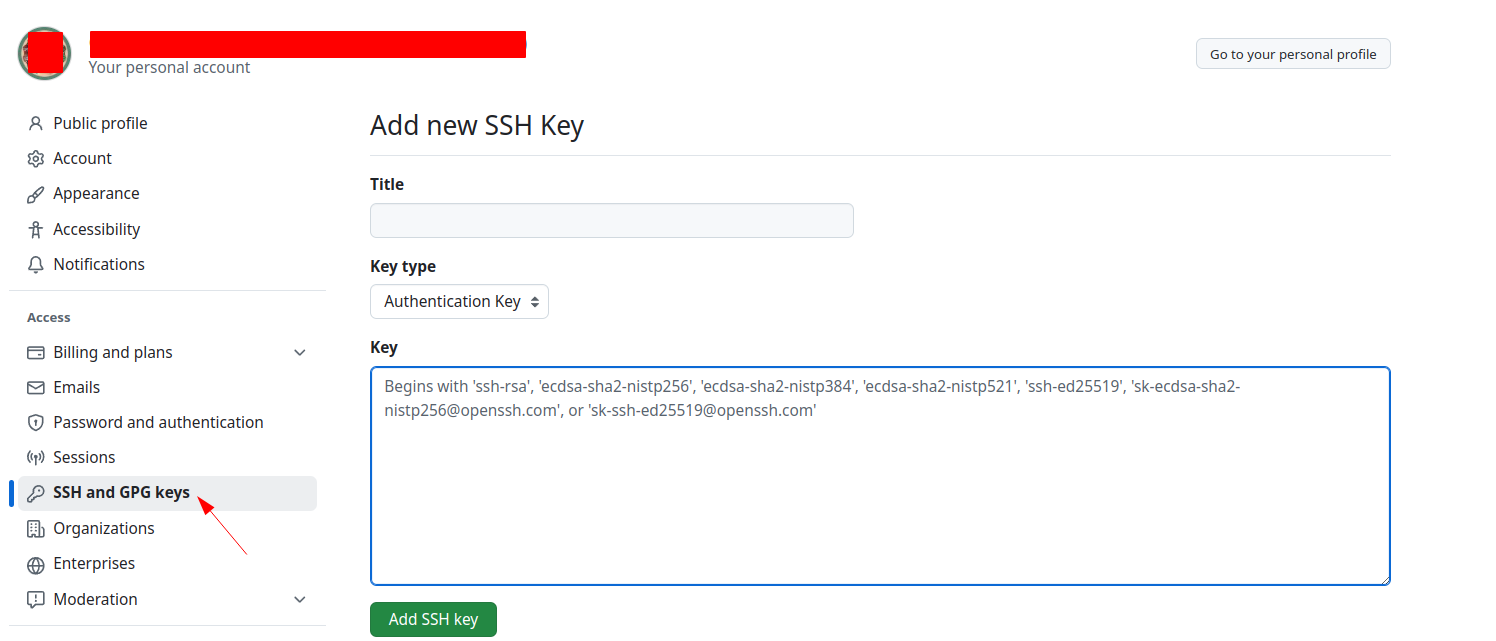
Now, go to GitHub and follow these steps:
- Click on your profile picture in the top right corner.
- Go to Settings → SSH & GPG Keys.
- Click on
New SSH Key. - Paste the copied public key into the indicated field.
- Save the key.
Register the private SSH key in the Transformation Module or Intelligence Module
Each module within the Dadosfera platform (Transformation and Intelligence) has a gear ⚙ icon in the top right corner of the page.
📌 To configure the private SSH key in the Transformation module or the Intelligence module:
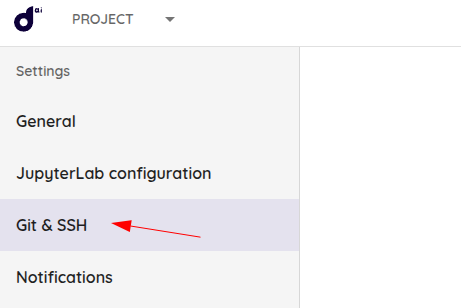
- Click on the ⚙ Project Settings icon.

- Go to the
Git & SSHtab.
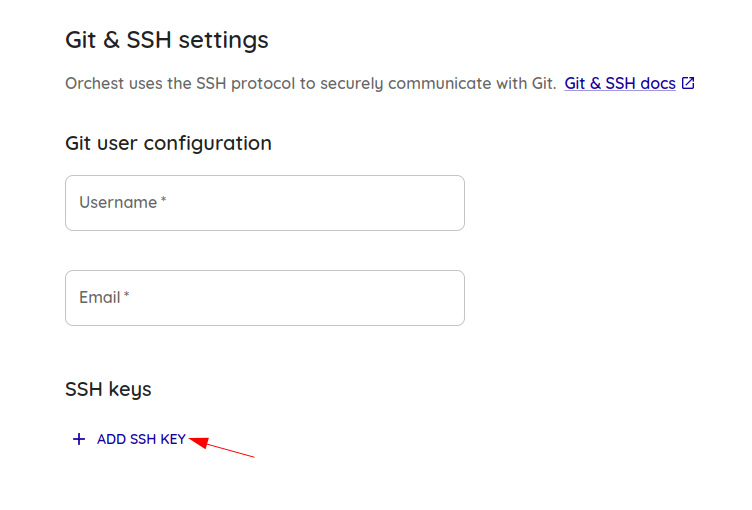
- Click on
ADD SSH KEY.
- Enter the private SSH key and your GitHub username in the appropriate fields.
In our example, private_ssh is id_rsa_projeto.
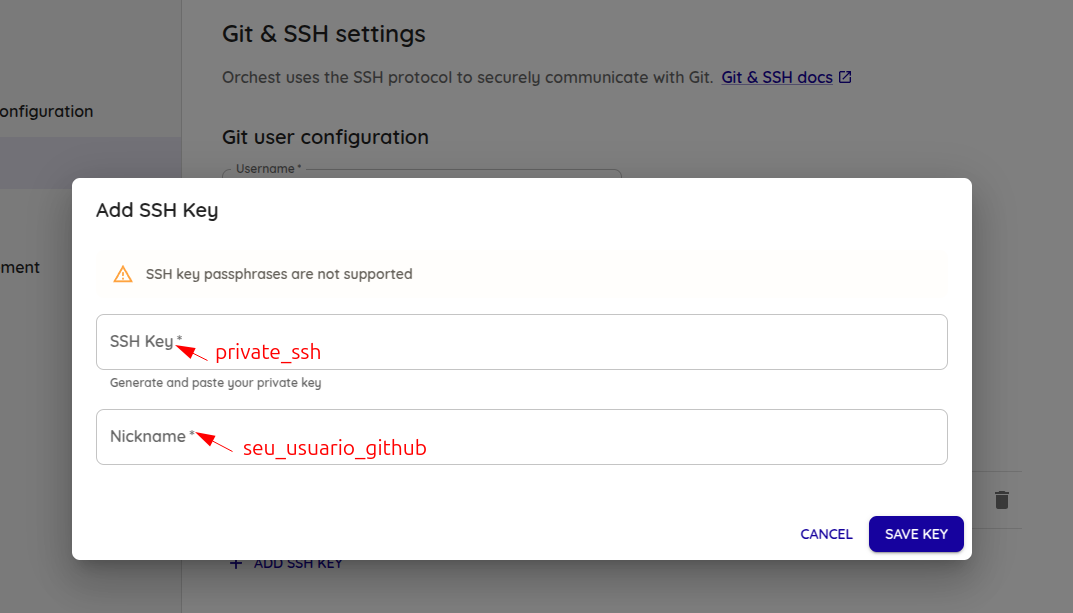
IMPORTANT!After configuring Git SSH, you need to restart the project's pipeline_session so that the Intelligence and Processing Module loads the registered credential.
📌 Considerations about the Transformation and Intelligence Modules
The Transformation and Intelligence modules do not have a user management system. This means the configured Git will be accessible to everyone within the project.
🔹 To ensure a specific user has control over the credential used, simply shut down the project's pipeline_session when done using it. (This should be done if there are no Data Apps that need to remain running)
🔹 This way, the Transformation and Intelligence Module will always use the credentials of the last user who restarted the pipeline_session.
Downloading the Project in the Transformation or Intelligence Module via Git
After configuring the credentials, we can download the project directly in the Transformation and Intelligence Module.
Clone the Git Repository in the Transformation and Intelligence Module
- Access the desired Module (Transformation or Intelligence).
- Enter the terminal via Jupyter (option 4).
- Remove the default Git tree from the created project (project root):
rm -rf .git- Clone the desired Git repository and access it:
git clone [email protected]:<usuario>/<nome-do-repositorio>.git
cd <nome-do-repositorio>
Replace:
usernamewith the GitHub username or organization name.repository-namewith the name of the repository you want to clone.
If you already have the repository, update it to make sure you have the latest version of the code:
git pull origin main- Switch to the desired branch before renaming the files.
git checkout -b minha-nova-featureAdjust files to avoid conflicts
- Rename the default files of the Transformation or Intelligence Module to avoid conflicts:
mv main.orchest main.orchest.bk.git
mv readme.md readme_bk.md- Move all files from the cloned repository to the directory above, including hidden files:
mv ./ ../ && mv .[^.] ../
Process summary1️⃣ Create the public/private key for Git on the local machine.
2️⃣ Configure Git and SSH on GitHub and in the Intelligence Module.
3️⃣ Clone the project inside the Intelligence Module.
Code Update and Deployment
After configuring Git and cloning the repository, you can proceed to the next step:
✅ Modify the code locally and test it.
✅ Push to the main branch.
✅ Run the deployment workflow.
🔹For details on these steps, see the document Guide to Code Update and Deployment in the Intelligence and Processing Module via GitHub Actions.
For more details on Git integration in the Transformation and Intelligence modules for your project, contact Support or the Professional Services team assigned to your project.
Updated 2 months ago