
Creating an API Using Flask in the Intelligence Module | Dadosfera Documentation
To set up a Flask application in the Intelligence module, there are a few prerequisites. To demonstrate this step-by-step, we'll use a basic Flask application template.
Folder Structure
.
├── app.py
└── main.orchest
Application Code
from flask import Flask

app = Flask(__name__)

@app.route('/')
def welcome():
    return "Welcome to my Flask application!"

if __name__ == '__main__':
    app.run(host='0.0.0.0')
❗ Important note: It is essential to set the host parameter to '0.0.0.0' to ensure your application is accessible from external IP addresses. By configuring the host this way, the application will accept connections from any IP address, rather than only local connections (which would be the case if the host were set to '127.0.0.1', for example).
Environment Setup
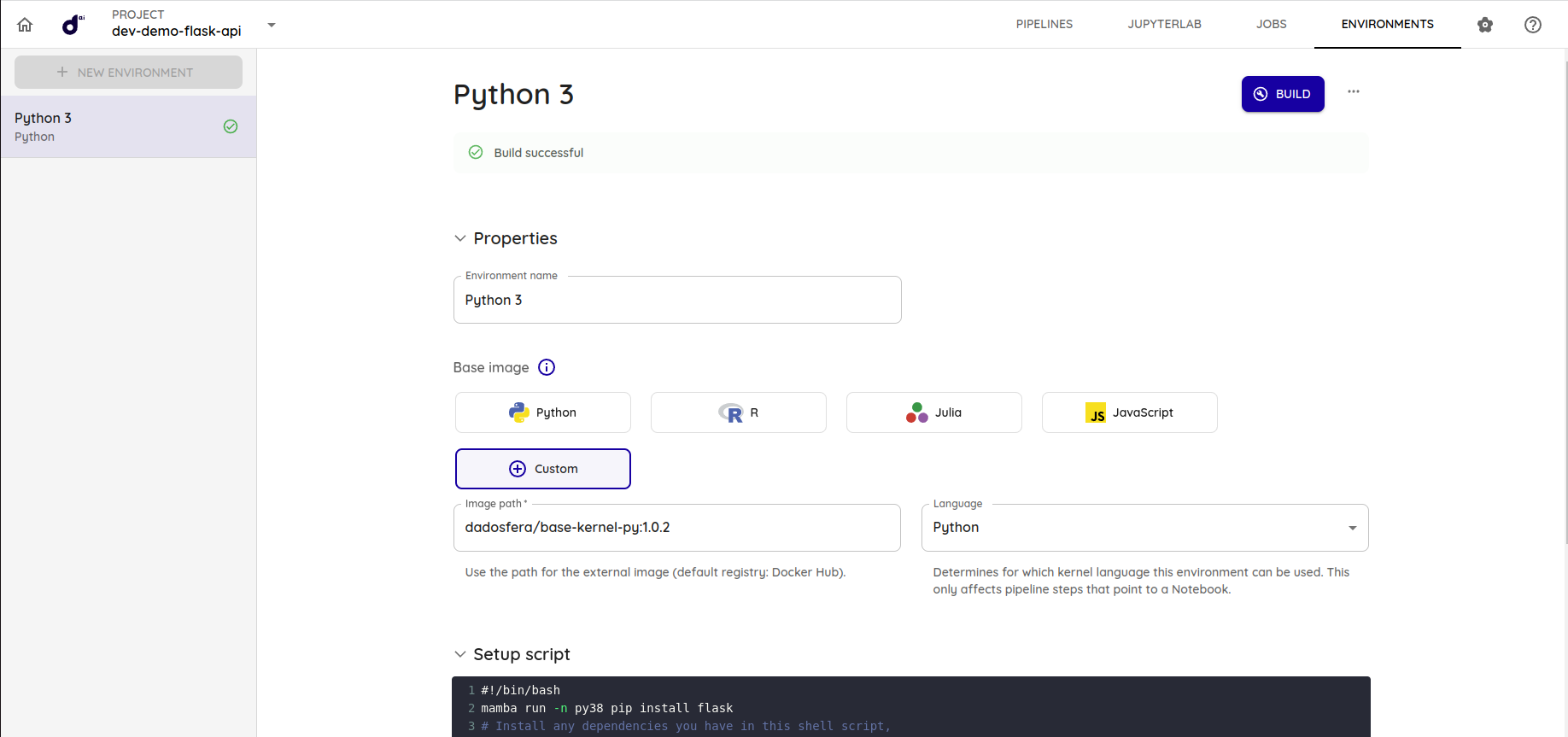
- Set up the environment the same way as shown in the image below:
- Build the environment.
Creating the Flask Service
- In the Intelligence module project, click on
Data Apps:
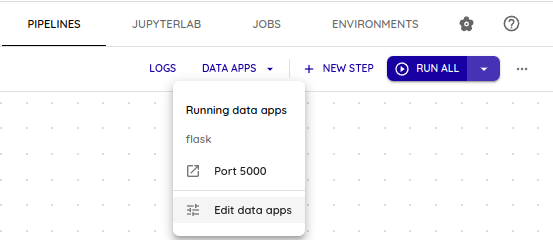
- Click on
Edit data apps. - Click on
Add service. - A dialog box will open. Click on
Create custom service. - A generic service will be created. Click on the row to edit this data app.
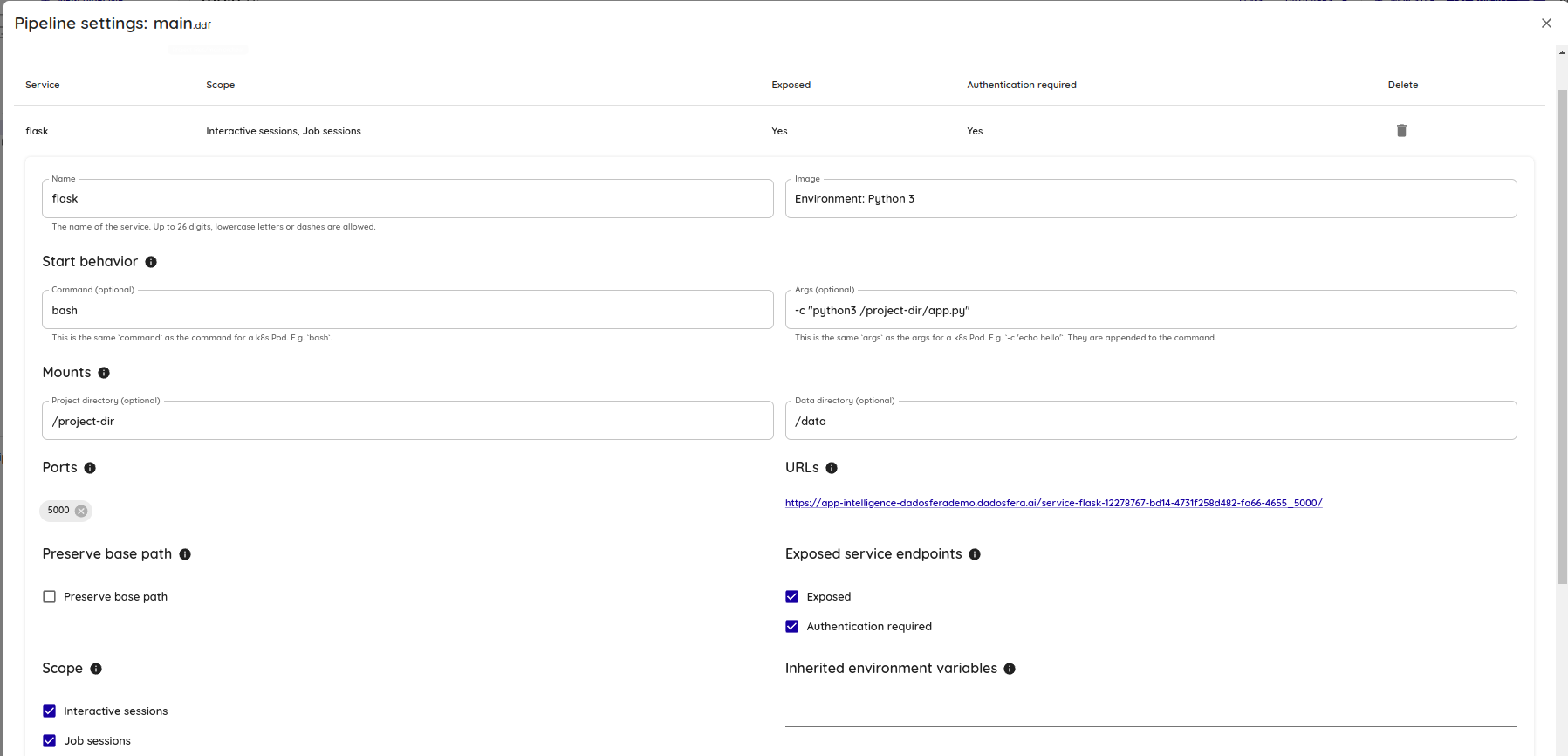
- Configure the service with the following settings:
- Image: Select the environment you built
- Command:
bash - Args:
-c python3 /project-dir/app.py - Project directory:
/project-dir - Data directory:
/data - Ports: Here you should enter the port your Flask application exposes. The default port is 5000.
- Preserve Base Path: This field should be unchecked. When checked, due to the nginx configuration, the service is mapped to http://internal_ip:5000/pdp-service-flask-12278767-bd14-4731f258d482-fa66-4655_5000, but what we need is for it to be mapped to http://internal_ip:5000/.
- Exposed: This option should be checked.
- Authentication Required: This option indicates whether authentication in the Intelligence module is required to access the API.
- Save
- Restart the session to activate the service
Verification
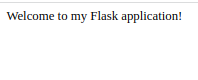
When accessing the URL provided for the service, you should get the following response:
Updated 2 months ago
Did this page help you?